This lab will give you an introduction to Java 8, including lambda
expressions, streams, and basic JavaFX.
When complete, your program should behave like the one shown in the
VIDEO accompanying this lab.
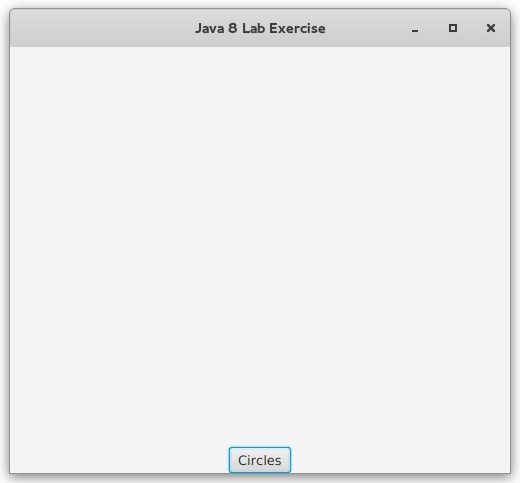
Below is a snapshot. Each time the user clicks the
Circles
button, randomly colored circles flow into the display from the
lower right and continuously change their shapes.
This section includes the relevant Oracle APIs.
- Download this Circles.zip file
and use the NetBeans Import Project > From ZIP... option
to create the project Circles.
- The important classes are Circles.java
and CirclesTest.java, whose listings can be seen from the
menu to the left.
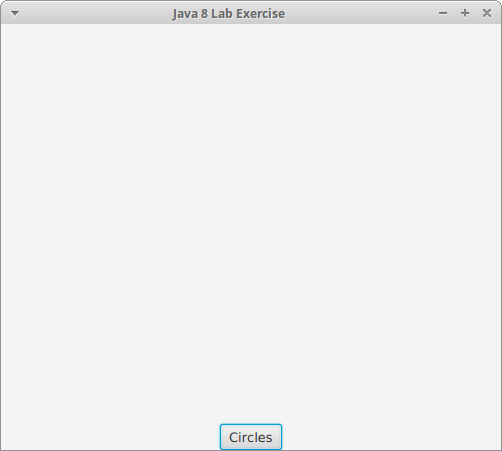
- Run (test) the CirclesTest.java file and you should get
the display shown below. Nothing happens when you click
the Circles button, but you can close the window to
exit.
- Follow the Steps in the menu.
This exercise walks you through the process of adding behavior when the
Circles button is clicked. Note:
- A small amount of code is added at each step.
- When a step involves JavaFX, it will be explained.
- Make sure that you have successfully completed a step
before moving to the next.
- As you make changes to this project, you may need to do
a Clean and Build before running to make sure your changes are
incorporated.
This exercise walks you through the process of adding behavior when the
Circles button is clicked. Note:
- A small amount of code is added at each step.
- When a step involves JavaFX, it will be explained.
- Make sure that you have successfully completed a step
before moving to the next.
- As you make changes to this project, you may need to do
a Clean and Build before running to make sure your changes are
incorporated.
Take a look at the
Java8.java file:
- Ignore the "unused import" warnings; they will be used
later
- Note the use of the constants:
- There will be ROWS rows of circles
- There will be COLS columns of circles
- Each circle will be displayed in a square area with side
length CELL_SIZE
- The width and height of the circle display area can be
calculated from these constants
Add to the body of the
configure method in the following ways:
- The canvas is a Pane
(package javax.scene.layout) which currently is 0 × 0 pixels.
Use the Pane class's setPrefSize method to properly
size it.
- The canvas and starter button are children of
a VBox container (same package). Use the VBox
class's setAlignment method so that the button is centered
at the bottom.
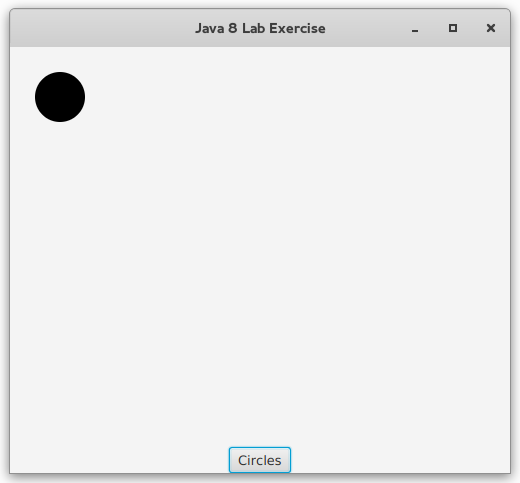
After this step, when the button is clicked a single black circle will
be added to the display as shown below. Note:
- The display size, in pixels, is determined by
the CELL_SIZE and the number of ROWS
and COLS
- The coordinates of the upper left corner of the display are (0,0)
- The circle is centered in the upper left square of the canvas
whose side length is CELL_SIZE
- The circle has a radius of CELL_SIZE/4
You will write a new method that accepts a circle and adds it to the
canvas.
This method will be tested by calling it from the handler for the button.
Write a private
addToCanvas method that:
- Returns void
- Accepts a single Circle argument
- Note: The Circle class is in
the javafx.scene.shape package.
- Uses Circle class methods to set the x and y coordinates
of the center so that the circle appears in the upper left corner
of the display
- Adds the circle to the canvas
- Note:
Use canvas.getChildren().add(...);
Your
addToCanvas method will be tested in the next step.
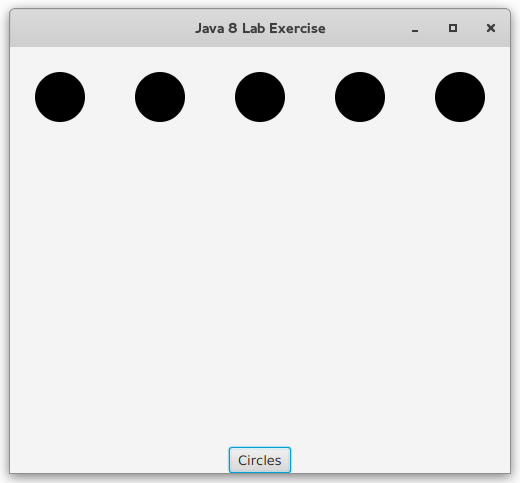
After this step, when the button is clicked a row of circles will be
added to the display as shown below.
While it would be straightforward to accomplish this with standard
iteration techniques, in this step you will practice working with
streams.
Write a method called
makeRow that:
- Takes no arguments
- Creates an infinite stream of circles by calling the
static Stream.generate method
- Transforms the infinite stream into one limited by the
length of a row
- Returns the resulting Stream<Circle>
The
Stream.generate method expects an object implementing
the
Supplier<T> functional interface. Use a lambda
expression of the form:
Test
makeRow by putting the following at the end of the
Circles constructor:
When
CirclesTest.java
is tested, you should see the following in the
Output window:
	Circle[centerX=0.0, centerY=0.0, radius=25.0, fill=0x000000ff]
	Circle[centerX=0.0, centerY=0.0, radius=25.0, fill=0x000000ff]
	Circle[centerX=0.0, centerY=0.0, radius=25.0, fill=0x000000ff]
	Circle[centerX=0.0, centerY=0.0, radius=25.0, fill=0x000000ff]
	Circle[centerX=0.0, centerY=0.0, radius=25.0, fill=0x000000ff]
Add
private int instance fields
row and
col that
will be used to index the circles within the display.
- row will range over [0..ROWS-1]
- col will range over [0..COLS-1]
Currently
addToCanvas arbitrarily places its argument circle in
the upper left corner of the display.
Modify
addToCanvas so that it uses the
row and
col
indexes to calculate the location of the circle's center.
- This location is in terms of pixel coordinates
- Introduce local double variables toX
and toY to hold the pixel coordinates of a
given row/col pair
Test
addToCanvas by initializing various values of
row
and
col. For example:
should result in the circle being placed in the bottom right position
of the display.
Write a method called
addRowToCanvas that:
- Returns void
- Takes an argument of type Stream<Circle>
- Initializes the col index to zero
- Consumes the stream using the forEach method:
- The Stream.forEach method expects an object implementing
the Consumer<T> functional interface.
- Use this lambda expression:
addRowToCanvas will be tested in the next step.
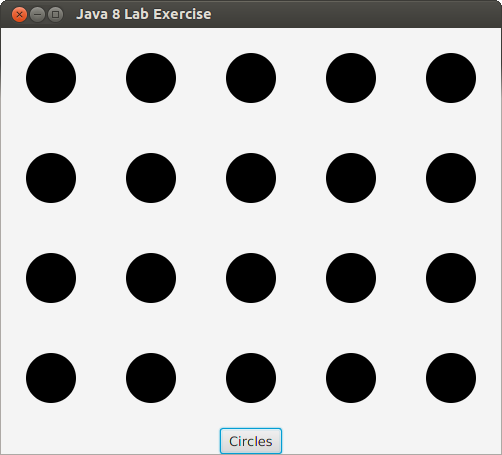
After this step, when the button is clicked all circles will be
added to the display as shown here.
Write a method called
makeAllRows that generates a stream of
streams of circles representing all elements of the display. This
method:
- Takes no arguments
- Creates an infinite stream of streams of circles by calling the
static Stream.generate method
- Transforms the infinite stream into one limited by the
number of rows
- Returns the resulting Stream<Stream<Circle>>
The lambda expression given to
Stream.generate should be:
Test
makeAllRows by putting the following at the end of the
Circle's constructor (replacing the previous test code):
When
CirclesTest.java
is tested, the
Output window should show
printed representations of 20 circles.
Write a method called
addAllRowsToCanvas that:
- Returns void
- Takes an argument of type Stream<Stream<Circle>>
- Initializes the row index to zero
- Consumes the stream using the forEach method:
- Use this lambda expression:
addRowToCanvas will be tested in the next step.
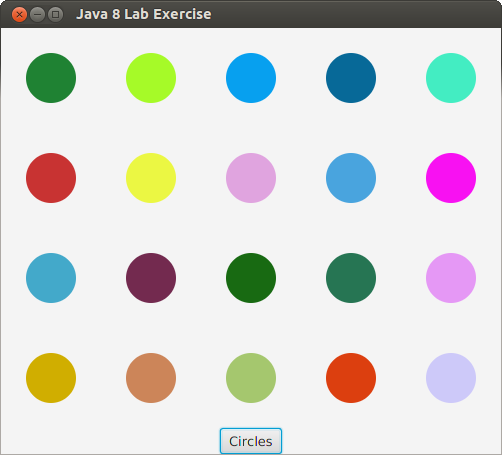
After this step, when the button is clicked colored circles will be
added to the display as shown below. Note:
- The colors will be randomly assigned
- Each click of the button will cause differently colored circles
to appear
You can give a circle a random color with a single line
of code at the beginning of
addToCanvas:
- Use the setFill method that the Circle class
inherits from Shape
- setFill accepts a Color object (from
package javafx.scene.paint)
- The Color constructor accepts three double values
representing red, green, and blue color components, and a
fourth double value representing the color opacity
- Use Math.random() to produce random values for each
of the color components
- Use 1.0 for the color opacity
The animation effects will be produced using "transition" classes in
the
javafx.animation package:
- TranslateTransition: to move the circles from the bottom
right corner of the display to their correct positions
- ScaleTransition: to continuously and randomly change the
size of the circles
Both animations are added in the
addToCanvas method.
addToCanvas currently places each circle in its destination
location.
Modify
addToCanvas so that each circle is initially placed in
the lower right corner.
- Use local double values fromX
and fromY to hold the coordinates of this initial
location
- Set the circle's center location to
(fromX, fromY)
- Retain the toX and toY variables that you
initially used to place the circles
A
TranslateTransition object makes a
scene node appear to move by continuously "translating" the location of
the node by an incremental amount and repainting it.
The amount of time taken to complete the movement is given to
the
TranslateTransition constructor as a
Duration object.
For example:
will create a transition that takes half a second.
Here are the
TranslateTransition methods you will use. Suppose
that the
TranslateTransition object is named
tt:
- setNode: to tell tt
which node is being animated, in this case the circle passed
into addToCanvas (a "node" is any element of a JavaFX
display)
- setByX: to tell tt how far in the x direction the
circle is to be moved (can be negative)
- setByY: to tell tt how far in the y direction the
circle is to be moved (can be negative)
- play: to initiate the animation
Here is an outline of the code needed to move the circles:
- This should be added to the end of addToCanvas.
- The arguments to setByX and setByY can be
easily calculated using toX, fromX, toY,
and fromY.
When correctly implemented, clicking the button will cause the desired
behavior.
The button can be clicked repeatedly to animate new colored circles
into position.
The animation is more distinct if the circles in the display before
clicking are cleared before new ones are moved in.
This can be accomplished by changing the lambda expression given
to
setOnAction in
addButtonHandler to the following:
A
ScaleTransition object makes a
scene node appear to expand or shrink in size by continuously changing
its width and/or height by an incremental amount and repainting it.
The amount of time taken to complete the expansion or shrinking is given to
the
ScaleTransition constructor as a
Duration object.
For example:
will create a scale transition that takes half a second.
Here are the
ScaleTransition methods you will use. Suppose
that the
ScaleTransition object is named
st:
- setNode: to tell st
which node is being scaled, in this case the circle passed
into addToCanvas
- setByX: to give st a "scale factor" in the x
direction, i.e. how much to change the node's width
- setByY: to give st a "scale factor" in the y
direction, i.e. how much to change the node's height
- setCycleCount: to tell st how many times to repeat
the animation
- setAutoReverse: to tell st whether to
automatically reverse the animation
- play: to initiate the animation
Here is an outline of the code needed to continuously resize the
circles:
- This should be added to the end of addToCanvas.
- If the same duration value is given to all calls to
the ScaleTransition constructor, all circles will expand
and shrink in unison. Use Math.random() to experiment with
giving each circle's scale transition object a randomly computed duration.
- You can experiment with scale factors for setByX
and setByY. A scale factor of 1.0 increases the affected property by
100%.
When correctly implemented, clicking the button will cause the desired
behavior.
When your program is working correctly:
- Export your Circles project to Circles.zip.
- Submit Circles.zip by going to
and clicking Submission under Lab Exercise: Java 8
Note the general
Submission Policy in the menu at left.
Successful completion of:
- Displaying without animation: 6 points
- With animation: 4 more points