
The following provides an orientation of a WAVE report's components.
Results are Displayed in 2 Main Areas
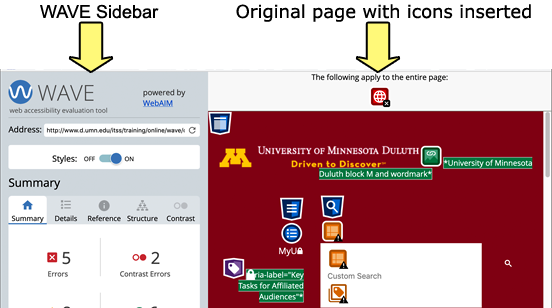
- A sidebar controls various views and functionality of the WAVE.
- Your original page with will have icons inserted.
Not all of the icons represent errors. In fact, icons are placed in the document in the places where you did things right too. This allows you to evaluate the effectiveness of your work in the context of the page itself.
The Sidebar
Details Panel
The Details Panel provides metrics that helps assess the accessibility standing of the page you are testing.
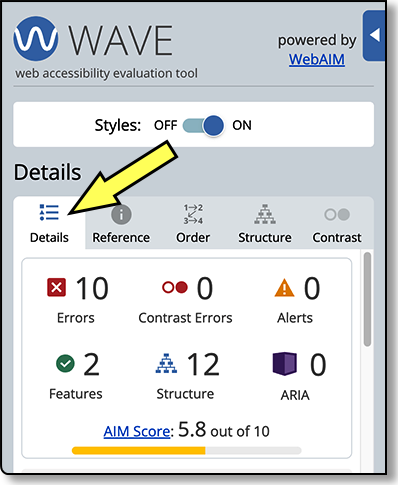
This provides results summary at the top, allowing you to get an overview of your total number of errors, alerts, features, structural element, and ARIA attribute.
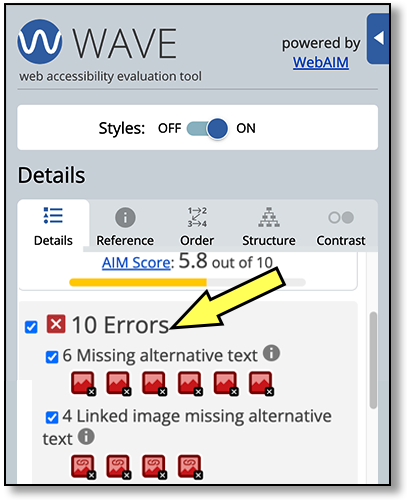
Below this summary (after the AIM Score) are the all the details for every issue, and feature.
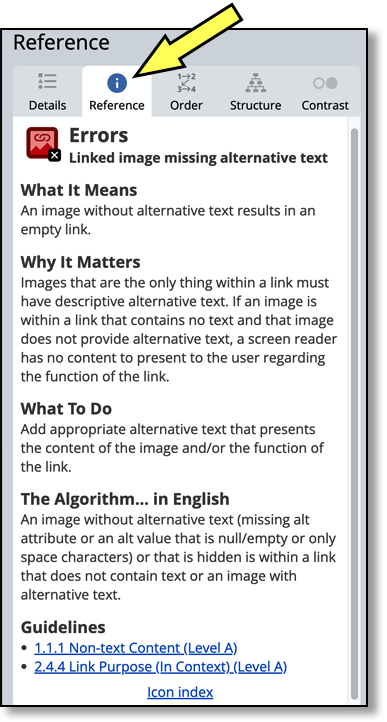
Reference Panel 
The Reference Panel is the 2nd tab on the sidebar and indicated with an "i" icon. It provides context and remediation guidance for every detected issue.
The Sidebar's Structure Panel 
The Structure Panel helps verify the semantic organization of your content. It is the 4th tab on the sidebar and indicated with a structure icon.
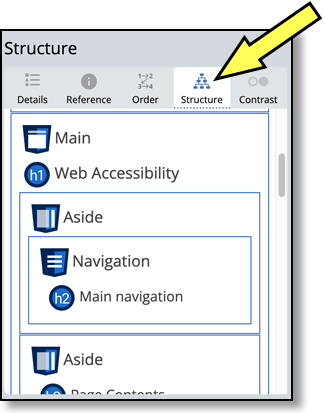
Use it to check heading order, semantics, and landmarks.
Contrast Panel 
The Contrast Panel is the 5th tab on the sidebar and indicated with an icon of 2 blue circles, one hollow and one solid.
The Contrast Panel highlights contrast issues and shows pass/fail status for WCAG AA and AAA standards. For comprehensive details consult the WAVE section of the Playbook: Accessible Contrast & Color.
Disable Styles Toggle Button
The WAVE includes a button that allows you to disable styles and view the raw, unstyled content of a webpage.

It can help identify accessibility issues that might be hidden by Cascading Style Sheets (CSS).
- If an icon in the WAVE panel appears greyed out, it means the element is not visible on the webpage.
- To review it, turn Styles off. This removes all CSS styling, simplifying the page view.
